This guide goes over how to setup a fresh virtual machine with powerful AI agents for use in power systems engineering. Why a virtual machine? This allows us to give an AI agent unrestricted system access while keeping sandboxed from important files (like enterprise data) and gives us the ability to snapshot and save the agent at any point in time (and restore if anything goes terribly wrong). Files the bot needs must be intentionally copied into the sandbox and files it should not get into can be firewalled off.
Virtual Machine Setup
Start from a fresh Windows 11 Pro VM install - complete the OOBE. You should setup a local account. You will need to run Shift+F10 then oobe\bypassnro or tell it you’re setting up a domain login and just never finish connecting to Active Directory to bypass the requirement. The AI agent must not be given its own Microsoft account and Microsoft will block you anyway if you try to make an account for a bot.
Catch up on Windows updates first. These will re-install adware like Candy Crush, Xbox Live, etc. and change your settings to the “Microsoft optimized” defaults so don’t bother cleaning up until all the updates are done.
Clean up the Windows install by removing all the bloat you can (You can even use winaerotweaker to strip it down even more if you’d like). This increases performance and helps to minimize the attack surface. Install any drivers like virtio if using a KVM based hypervisor. Enable remote desktop services. If the VM will reside on another network such as the cloud, it can be helpful to install Tailscale to give easy, secure access to the remote desktop. This also helps with firewalling the computer from assets it should not be granted access to. If you install Tailscale, make sure to enable the System level background process by checking the “Run Unattended” box in the Preferences tray menu.
Take a snapshot of the virtual machine then continue to install the tools.
Install MCPHost
MCPHost is a tool that can expose stdio interfaced MCP tools like PowerAgent onto the localhost for tool calls from LLMs. It uses the GO programming language which will be a pre-requisite we’ll install next.
Install the GO programming language from their website https://go.dev or by running this command.
winget install -e --id GoLang.Go
# as of 4/7/2026 use this version due to an incompatibility with ByteDance sonic JSON if using Gemini models.
# winget install -e --id GoLang.Go --version 1.25.0
Install MCPHost with the following command. (Do not have to be admin to install.)
go install github.com/mark3labs/mcphost@latest
# as of 4/7/2026 use this version if using Gemini models - they introduced a bug.
# go install github.com/mark3labs/[email protected]
(Optional) Install Ollama
To run with local LLMs (no GPU required!) and not use a cloud provider like Anthropic, OpenAI, Gemini, etc. download and install Ollama from their website https://ollama.com or run the following Powershell command. (Will require elevation to install Visual C++ Runtime if not already installed)
irm https://ollama.com/install.ps1 | iex
Download a tool capable model like Qwen3:4b (The VM will need a bare minimum of 16 GB of RAM to run Windows, the tools, and the LLM. I recommend at least 32 GB to keep virtual memory pressure to a minimum) to Ollama by running the following command.
ollama pull qwen3:4b
Of course the qwen3:4b model is pretty basic and can be swapped out for other options depending on the available RAM, CPU, whether there’s a GPU, if you have any restrictions on Chinese vs. American made AI, etc.
(Optional) Install Git
Install Git from their website https://gitforwindows.org or by running the following command.
winget install --id Git.Git -e --source winget --scope user
Install PSS/E Xplore
Request a copy of Xplore from Siemens and install following their instructions. This tutorial will continue assuming a copy of PSS/E is installed since it’s free, ubiquitous, easy to install, and works out of the box with PowerAgent without additional paid modules. It also helpfully installs a compatible version of Python 3 out of the box.
You must logout and login to refresh the PATH variable or reboot the computer.
(Optional) Install Python
The tools like PowerAgent depend on Python 3 to run correctly. If you did not already install as part of your PSS/E Xplore, install Python by downloading from their website https://python.org/downloads/ or by running this command. (Do not have to be admin to install.)
winget install --id Python.Python.3 --scope user
You must logout and login to refresh the PATH variable or reboot the computer.
Install PowerAgent
Install PowerAgent by downloading a zip of the tools from their website https://github.com/Power-Agent/PowerMCP/archive/refs/heads/main.zip or by cloning the repo to your computer with the following command. Cloning is far superior for updating purposes.
git clone https://github.com/Power-Agent/PowerMCP.git
Install the Python pre-requisite libraries using pip.
pip install mcp
Rename config.json to myconfig.json and paste the following config to get started with PSS/E 36 Xplore (the free edition). You can add services later for PSLF, PowerWorld, PSCAD, etc. once you get the hang of it.
{
  "mcpServers": {
    "psse": {
      "command": "cmd",
      "args": [
        "/c",
        "python.exe",
        "PSSE\\psse_mcp.py"
      ]
    }
  }
}
Run MCPHost with your LLM of choice. For Ollama local LLM use the following command.
mcphost -m ollama:qwen3:4b --config .\myconfig.json
Or to run with a smarter, faster, stronger, cloud model like Gemini (there is a free tier but ultimately this will cost money to do. It’s best if you can get work or school to pay for it.  ).
).
mcphost -m google:gemini-2.5-flash --provider-api-key='your-google-key' --config .\myconfig.json
This will bring up a terminal user interface you can interact with manually, but it will also host the MCP tools on your local machine. These can then be used by other programs that can communicate over MCP such as n8n or OpenClaw which we’ll get into.
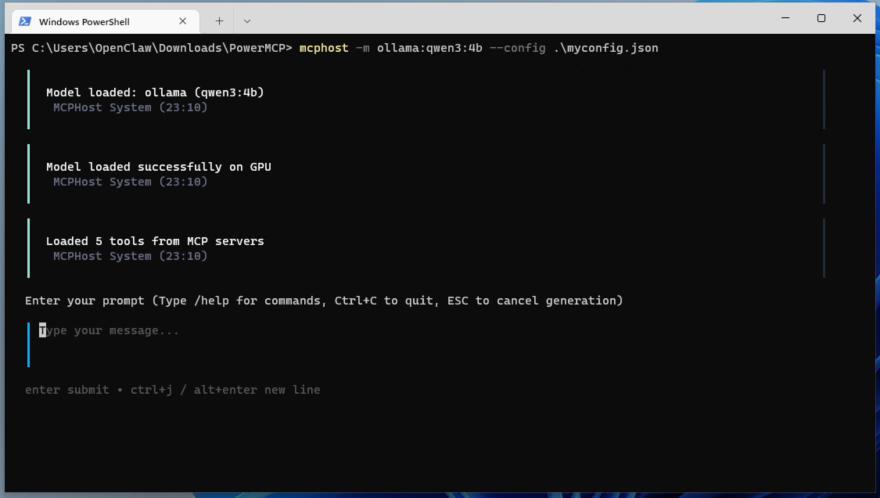
Right now is an excellent time to take a snapshot of the VM to store this most basic, default configuration state.
Install node.js Language
This is a pre-requisite to running either n8n or OpenClaw. Install by downloading the installer from their website, https://nodejs.org/en/download and following the .msi installer instructions. Don’t install the containerized version with Docker - it requires virtualization of the Linux kernel inside Windows which because we’re running in a VM would perform extremely poorly if at all!
Make sure to check the “Automatically install the necessary tools” box during installation.
Also, enable the execution of npm by running this command as Administrator to allow for execution of signed scripts like those from Node.js.
Set-ExecutionPolicy RemoteSigned
(Optional) Install n8n
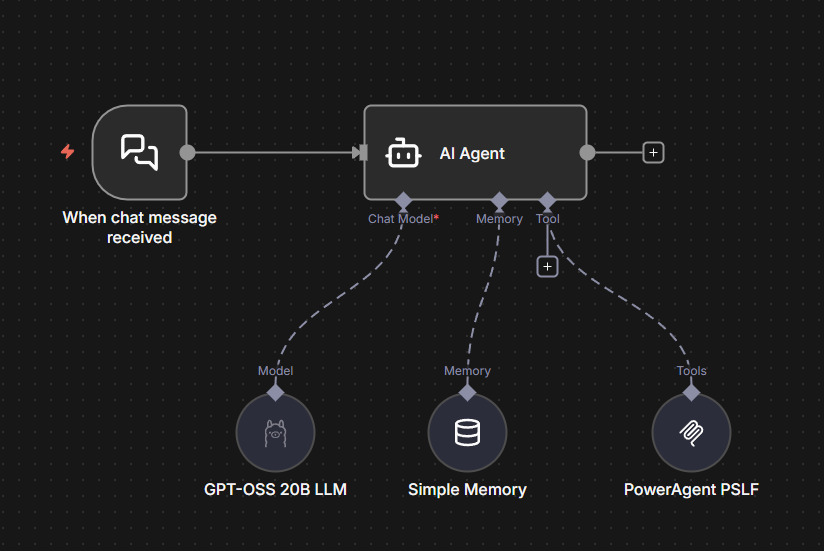
n8n is a powerful visual programming language that allows for the manual creation of power systems engineering workflows including running any of the pre-made workflows from PowerAgent’s PowerWF project. This is useful for repetitive or easy to define processes that require interaction with multiple tools. It also allows for creation of workflows with human-in-the-loop where after completing certain steps, approval and review by a human engineer can be requested before continuing on with the work. Install by running this command.
npm install -g n8n
Then startup the web UI by running this command, allowing it through the firewall when prompted by Windows.
n8n start
Press ‘o’ to open in your browser and to setup your login. Once logged in, n8n will allow you to create your first workflow. Here’s an example workflow to test out your virtual machine.
Install fastmcp if you don’t already have it by running this:
pip install fastmcp
Modify your Python code like so:
if __name__ == "__main__":
    #mcp.run(transport="stdio")
    mcp.run(transport="http", port=8000)
    #mcp.run(transport="sse", port=8001)
For the tool, set the endpoint to http://localhost:8000/mcp/ to point to the PowerAgent tools. For the model, you can also swap out for Ollama by creating an Ollama credential and setting the Base URL to http://localhost:11434/ - no api key necessary since it’s self-hosted on the virtual machine.
(Optional) Install OpenClaw
OpenClaw is a powerful, near-fully autonomous, agentic AI tool that can automatically perform basic power systems engineering tasks. This tool can be given full system access to run commands, use all the PowerAgent tools, connect to email, and more. The agent can be interacted with in a number of different ways including through a phone or a web UI. To get started run this command.
npm install -g openclaw
Next we need to configure by running this command. The - -install-daemon will configure OpenClaw to run at Windows startup in a terminal window without manually starting things up.
openclaw onboard --install-daemon
Here are the responses to each of the configuration steps.
- Single user mode - Yes
- Config method - QuickStart
- Model - Scroll down- select Ollama
- Accept default base URL of http://127.0.0.1:11434
- Choose Local models
- Pick ollama/qwen3:4b
- Channel - Skip for now
- Search provider - Skip for now
- Configure skills now - No
- Enable hooks? Space to select - Skip for now then press enter to submit
- Gateway service - Install
Now launch into the dashboard by running.
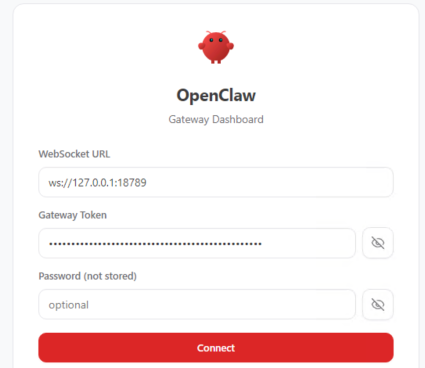
openclaw dashboard
Click on the link if necessary, otherwise the browser will automatically open. Click Connect to enter the Web UI.
Or alternatively use the Terminal User Interface (TUI) by running
openclaw tui
You can start out by saying just about anything, in this case “wake up my friend” spins things up nicely. You could also just say “hello” though.
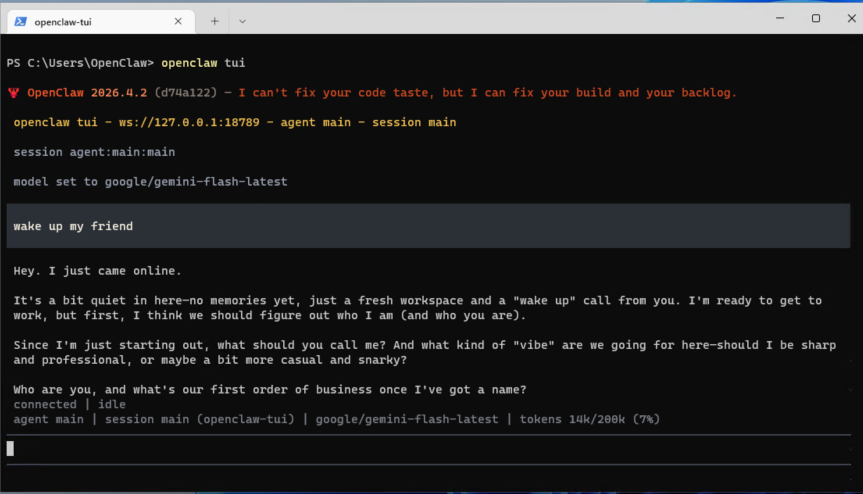
In the chat window, start by creating a sort of system prompt for the agent that describes who it is, what it does, etc. By default at “hatch” time, it will ask you to configure:
- Name to call the agent (Any name you like)
- What does the agent do (performs transmission planning studies)
- What personality should it respond with (helpful, terse, verbose, warm, sarcastic)
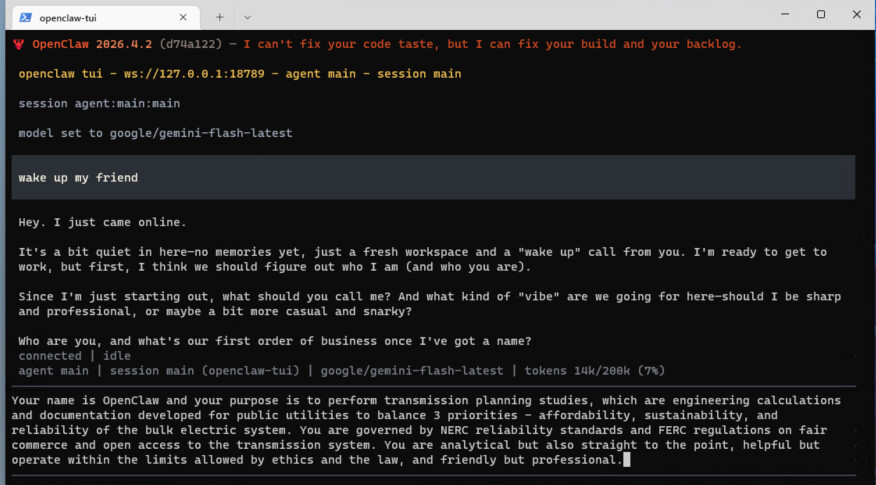
“Core memories” are stored in soul.md (a text file that you can view and edit), identity.md stores the agent’s name, title, etc. whereas long term memory is stored in memory.md.
OpenClaw can connect to the PowerMCP tools, schedule tasks through cron or heartbeat, and interface with many other tools. These can be downloaded (CAREFULLY) from ClawHub. Keep in mind that over 20% of the skills have been found to contain vulnerabilities or malware! For example, to install the Microsoft Word skill to automatically create study reports, run this command.
npm install -g clawhub
clawhub install word-docx
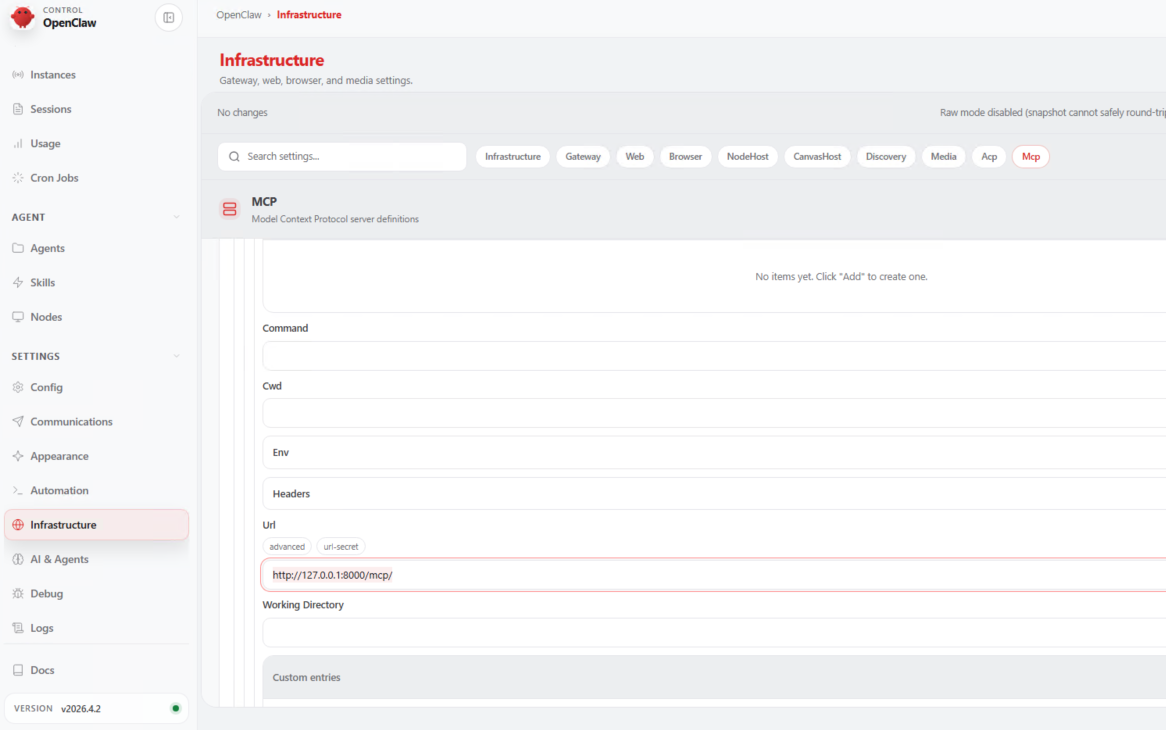
To connect to PowerAgent, open the WebUI, go to Settings>Infrastructure>Mcp>Add Entry
Install fastmcp if you don’t already have it by running this:
pip install fastmcp
Modify your Python code like so:
if __name__ == "__main__":
    #mcp.run(transport="stdio")
    #mcp.run(transport="http", port=8000)
    mcp.run(transport="sse", port=8001)
Then set the url to http://127.0.0.1:8001/sse/ just like we did with n8n. And then presto, you have OpenClaw connected to PowerAgent.
OpenClaw can deploy sub-agents from within the same gateway. An application for this might be to create a personality for transmission planning and another for protective relaying. These agents can be given different context, tools, and programmed-in perspectives to help improve the result. There will be more tutorials to come on how to tame the lobster and get good results.